Cube Documentation
Getting Started
Install Cube, open a workspace, and start your first conversation.
Installation
Prebuilt releases support Windows x64, Linux/WSL x64, and macOS arm64/x64. The one-line installer downloads the matching package and verifies its SHA-256 checksum. The packaged app includes its runtime; you do not need to install Node.js separately for this route.
Review a remote installer before executing it if you need to audit what runs on your machine. Installers update the application separately from ~/.cube, where your configuration and history live.
PowerShell · Windows
irm https://cube-agent.pages.dev/install.ps1 | iex
Shell · macOS / Linux / WSL
curl -fsSL https://cube-agent.pages.dev/install.sh | bash
npm / pnpm · Node.js 18+ for the installer wrapper
npm install -g @cube-harness/cli
# Or:
pnpm add -g @cube-harness/cli
Install with Agent
Copy the prompt below into an AI agent with terminal access to have it download and install Cube for you. If your AI cannot run commands, it can guide you through the installation instead.
Install the latest Cube CLI on this machine using the official guide:
https://cube-agent.pages.dev/docs/getting-started.md

Detect my operating system and CPU architecture, then download and run the matching official installer from the guide. Use the installer's SHA-256 verification and preserve any existing Cube configuration and history.

Check that the cube command is available, and help me fix PATH if needed. Then show me how to open my project directory, run cube, and complete the interactive workspace trust and gateway/model setup myself. If you cannot run terminal commands, give me the exact commands to run instead.
First Run & Onboarding
Open a terminal in the project you want Cube to work on and run cube. Cube creates its home files when missing. An installed release checks for an application update, asks you to trust a previously untrusted workspace, then asks for a gateway/model only if the saved configuration is not sufficient to run. Development runs do not use the installed-release updater.
Trust is stored per workspace in permission.json. Declining or cancelling the trust prompt exits without saving a rejection. Trusting a project does not automatically approve every command or file edit.
Choose API Key, OAuth, or Local. API keys and OAuth tokens are saved in auth.json, not config.yaml or a project .env. Gateway and model selections are saved in config.yaml. Existing usable settings skip setup on later launches.
The startup info box shows loaded SOUL.md and AGENTS.md information. Opening Cube or using /new prepares instructions in memory; a conversation is actually created when you submit its first prompt.
Terminal
cd /path/to/your/project
cube
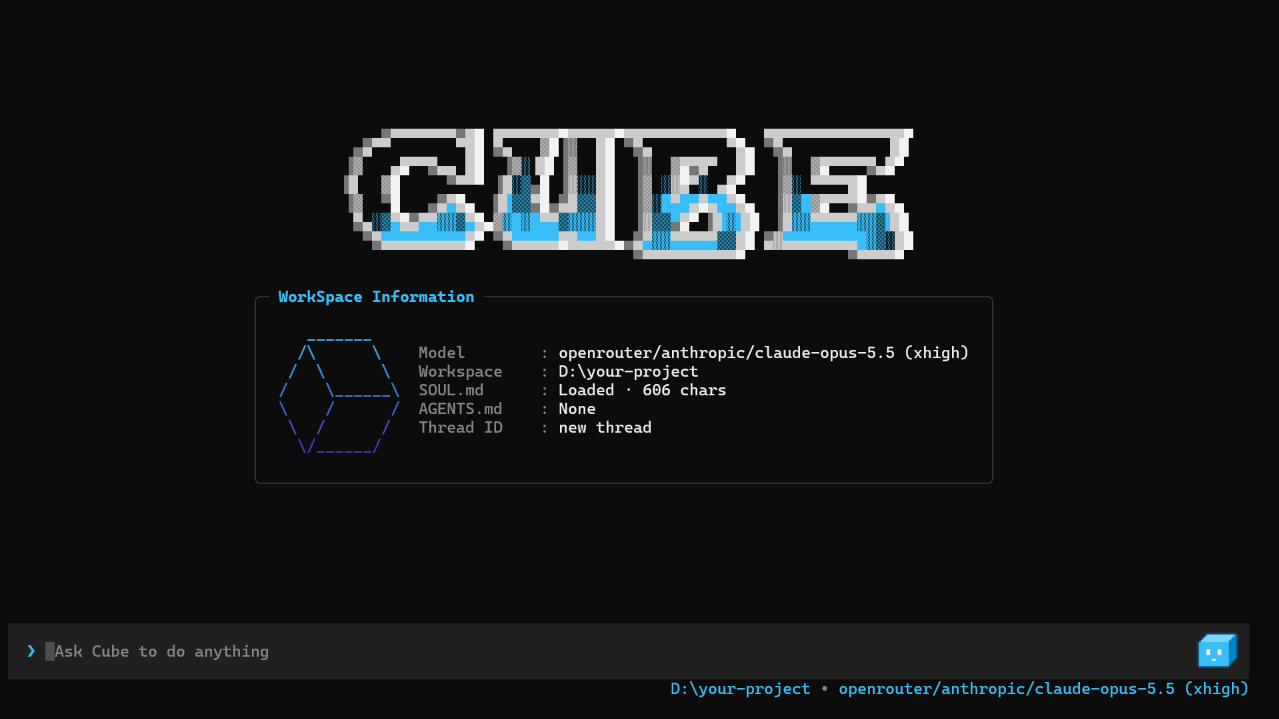
Updates
When startup finds a newer published release, choose Update to install it and restart, Skip to use the current version, or Cancel to exit. User configuration and history under ~/.cube are preserved when old application versions are removed.
If cube is not found after installation, open a new terminal so PATH changes are picked up. For Linux/WSL, ensure ~/.local/bin is on PATH. Cube's release version comes from the published application; the npm wrapper's package version is separate.